MCP server · AI agent for sellers
MCP for Wildberries and Ozon: ask your AI assistant about links and orders
Skip the dashboard — just ask your assistant: “How many orders did the blogger bring this week?”
Connect your Mobzio account to an AI assistant that supports the Model Context Protocol — Claude, Cursor, Yandex AI Studio and others. The assistant shows your links, clicks and marketplace orders, checks a link and creates a new one when you ask.
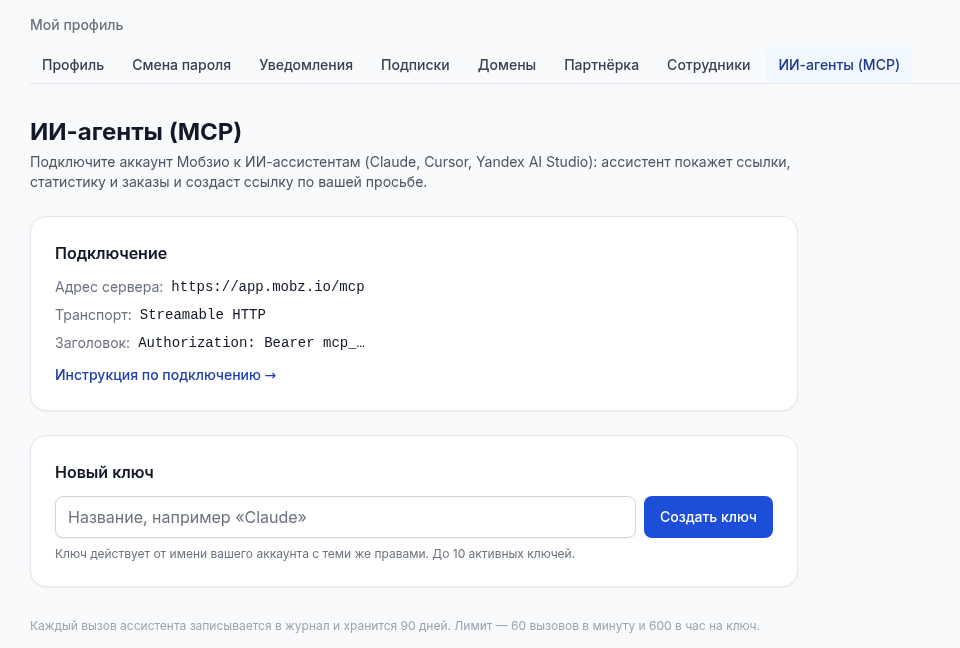
Connect to Claude Create a keyNo key needed in claude.ai and Claude Desktop — just sign in to Mobzio. For Cursor and other clients, your key is in “Profile” → “AI agents (MCP)”.
Claude, Cursor and Yandex AI Studio are trademarks of their respective owners. We list them as clients that support MCP; Mobzio has no partnership with them.
What to ask your assistant
Write in plain language — the assistant picks the right Mobzio tool and answers from your account data. Below are illustrative examples: what the answer actually contains depends on your links and connected integrations.
Data source: Link search by description and orders by link. Requires a connected marketplace integration and the conversions option.
Data source: Link list with clicks for today, yesterday and all time; 7-day diagnostics.
Data source: Creating a link is the only action that changes data. It runs only when you ask.
Data source: Account summary for a day (yesterday, Moscow time, by default).
Data source: Link diagnostics: plan, clicks over 7 days, page availability, integration connection.
Data source: Daily click statistics for the selected period.
Data source: Orders and subscriptions by link: Telegram, MAX, VK.
Data source: Connection check — the first call after setup.
The assistant answers only from your data in Mobzio. If no marketplace integration is connected, there will be no orders for the link — and the assistant will say so.
What the Mobzio MCP server does for marketplaces
Nine tools. Eight only read data, one creates a link. The full list with parameters is in the guide.
Connection check
Shows which account the assistant is connected to. The first question after setup.
Your deeplinks
Account deeplinks: domain, your role and plan status.
Daily summary
Clicks and trend, orders, top sources and links, subscribers, integration status and anomalies — across all deeplinks at once.
Link list
Links page by page, filtered by platform and folder, with search by name, description and address. Optionally with clicks for today, yesterday and all time.
Single link
Destination, description, folder, interstitial page and clicks.
Daily clicks
Unique and total clicks, button taps, “reached the store” and period totals. 30 days by default.
Orders by link
Orders that Mobzio attributed to the link: Wildberries, Ozon, Kaspi, Yandex Market, plus Telegram, MAX and VK subscriptions. Count and total, broken down by SKU.
Link diagnostics
Plan, clicks over 7 days, whether the product page opens, whether the integration is connected — and what to fix.
Create a link
A short link to a product or page: WB, Ozon, Kaspi, Yandex Market, Telegram and more. You can set your own name, description and folder.
What MCP doesn't do: it doesn't delete links, pay for plans or change account and integration settings. Orders by link require a connected store and the conversions option — same as in your account.
All tools and parameters are in the MCP guide · How Mobzio counts orders from external Wildberries traffic
Set up in three steps
You'll need a Mobzio account with an active deeplink plan. No key is needed in claude.ai and Claude Desktop: you sign in to Mobzio right from Claude and choose the access level yourself.
claude.ai and Claude Desktop — in one click
No keyAdd a connector
In claude.ai or Claude Desktop, open Settings → Connectors → Add custom connector. Name: Mobzio, URL: https://app.mobz.io/mcp. Click Add, then Connect.
Sign in to Mobzio and choose access
A Mobzio window opens. Sign in, choose “View only” or “View and create links” and click “Allow”.
Ask your first question
Ask: “Can you see my Mobzio account?” The connection appears in your account under “AI agents (MCP)” marked OAuth — you can disable it there too.
Claude Code — no key either:
Then type /mcp in Claude Code and choose Authenticate.
Cursor, Yandex AI Studio and others — with a key
mcp_…For clients that connect with an authorization header, and for automations.
Create a key
In your account: “Profile” → “AI agents (MCP)” → “Create key”. The full key is shown only once — copy it right away.
Add the server to your client
Enter the server URL and send the key in the Authorization header. Claude Desktop via mcp-remote and Claude Code with a key work the same way.
Check it
Ask the assistant to call mobzio_whoami — it shows which account the key belongs to.
What the assistant can and can't do
The assistant gets access to your account — so its permissions are narrow, and every call is visible in the log.
The key isn't stored in plain text
We store only a hash of the key. It can't be recovered — only replaced with a new one. The key is sent in the request header, not in the URL.
Only your deeplinks
The assistant sees your deeplinks and those where you are an employee — with employee permissions. Data is available with an active plan.
You choose the access level
When connecting via OAuth, you choose “View only” or “View and create links”. With view-only access, the assistant can't even create links. Deleting, paying and changing settings via MCP is not possible.
Call limits
60 calls per minute and 600 per hour — for both keys and OAuth connections. An assistant stuck in a loop won't flood your account with requests.
90-day log
Every call is logged: which tool, when and with what result. The log is kept for 90 days.
One-click disable
Claude connections marked OAuth and keys (up to 10 active) are listed under “AI agents (MCP)”. Disable one and access stops immediately.
Tip: create a separate key for each client and employee. Then, when you change contractors, you only need to disable one key.
Who the MCP server for marketplaces is for
Sellers
In the morning, ask the assistant how yesterday went and which blogger brought orders — without opening your account or exporting reports. Make a link to a new WB or Ozon product card right in the chat.
Marketers
Compare daily clicks across influencer placements, find links that stopped working and check why a link has no orders — in the same window where you write your report.
Agencies
A summary across all account deeplinks at once, employee access within their permissions, a separate key for each employee and a call log.
Need AI not for analytics but for the product cards themselves — infographics, SEO copy, video covers? That's Mobzio Ai — AI for marketplace product cards.
Not using Mobzio yet? Start with deeplinks to marketplace products and social media: they count the clicks and orders that the assistant later shows you.
Frequently asked questions about the MCP server
Mobzio and the URL https://app.mobz.io/mcp, click Add, then Connect. In the Mobzio window, sign in, choose “View only” or “View and create links” and click “Allow”.How to connect MCP: step-by-step guide · MCP for sellers: what to ask your AI assistant · Documentation: server address, tools, errors
Ask your assistant, not the dashboard
Connect Mobzio to Claude in one click or create a key for Cursor and other clients — then ask your first question: “How did yesterday go?”
Connect to Claude Create a key